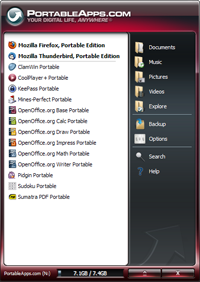
First off what is a Portable Application is one that does not leave any of its settings behind on a computer, and does not modify anything and will be able to retain those settings from computer to computer. For a more in depth and probably less confusing definition and explanation of this check out the following page from PortableApps.com. http://portableapps.com/about/what_is_a_portable_app. Now that you know or have a general idea of what a Portable App is, here is why you should check out PortableApps.com and also why you can find a good use to Portable Applications. PortableApps provides many portable appications to software titles that is open source and now it is also working with freeware application companies to make their programs portable. You have many categories to choose from and you will be sure to find software to carry around on your usb that will fit your software needs. All the settings a kept and they do not save onto the computer you use the portable application on. You may be thinking, "Can't I just put any program on my usb and run it on another computer?" In some cases yes, but most of the time no. You may be able to run it but you are storing information on the computer you use it on and they won't be available for use next time you use your usb on another computer. This is why Portable Applications come in handy and are useful and also why PortableApps is a useful site. The site is constantly updating and putting out new software so keep an eye out and check back often. There are many developers that dedicate their free time to put out applications and all applications get lots of testing before they are released to ensure that the application is stable and is Portable. Also if you get a lot of programs, there is a PortableApps menu that organizes your programs and has a nice interface. Here is a screenshot and also a link to it. http://portableapps.com/suite
So check out PortableApps.com today and also try and check out the forums. The community is nice and very friendly. Hope this was helpful and enjoy! =) http://portableapps.com/
Know it all-Sum it up
Welcome
Hello there! Welcome to the knowitall-Sum it up blog! This blog will feature much content on many subjects and will hopefully provide answers to any questions you may have or hopefully keep you entertained! Please subscribe and let your friends know about us if you like this blog! Many thanks!
-EPTCEOs
-EPTCEOs
Ads
Friday, August 27, 2010
Skype (IM and internet Caller and more)
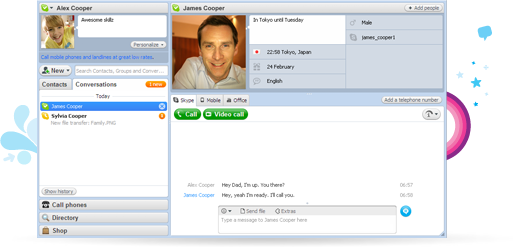
Ever heard of people talk about Skype but you don't know what it is? Well Skype is an IM (Instant messenger) and also internet caller and video chat providing software that is all free. Of course the calling is only free when its from Skype to Skype, meaning you and another person can call each other if you both have Skypefor free without paying a fee. But when you want to use a Skype to a phone then you have to buy Skype credits. Skype is very reliable and stable with many features and a nice interface. You can do group callings, meaning you can add more than one person to a call and talk to them all at once. You can also do video chat with a webcam but that is only limited to one person and cannot be done in groups. If you don't want to do either of those but still want a good and reliable IM program, Skype has that and then some. Skype is really easy to understand and looks great. Download and try Skype today. It is a very useful program to have and also creating a username for Skype is free and takes only a minute to do. Enjoy. http://www.skype.com/intl/en-us/home. Also for those of you who wish to carry Skype on a usb and keep your settings with you, check out the portable version from PortableApps.com. http://portableapps.com/apps/internet/skype_portable
File Recovery Program (Recuva)
Have you ever found yourself in a situation where you accidentally delete a file or something of importance on your computer by accident? Did you find yourself lost, frustrated and feeling empty on the inside afterwards? I bet your wishing you knew of some way to recover your file. Well now there is a free and simple solution that doesn't require you to be a computer wiz to recover your file. A software by piriform called Recuva allows you to do just that. Download Recuva on your computer locally or download the portable build that allows you to carry it on your usb drive. Once you have it downloaded it runs you through a wizard to help you recover your deleted file. Recuva is fast and usually has a high success rate of finding the deleted file. You can even search for deleted files by its file type to see all types of files deleted like that. I highly recommend this software, its useful to have and can be a life saver. Here is a link to recuva. http://www.piriform.com/recuva.
Thursday, August 26, 2010
Open Source Software search engine (sourceforge)
Ever wanted an alternative to big name software brands but can't afford to buy the software? Need alternatives to freeware? Well here is a site that allows you to search many open source software programs. For those of you who don't know what open source is, it is software that is free to distribute, modify, etc. They provide the code for the software so if you have programming experience you can modify the program to fit your needs. Many of these open source programs can match and in some cases beat their big company counterparts. So check it out and give it a shot and hopefully this helps you find software that you can be happy with and also that is free. =) http://sourceforge.net/
CCleaner aka (Crap Cleaner)
If you have ever been frustrated or boggled by the mere fact of finding out how to clean your computer and rid it of junk fear no more. No longer will you have to become frustrated or take the risk of you messing up or removing something that shouldn't have been removed. With the life saving and time saving and very sleek software called CCleaner, made by piriform, it can rid your computer of junk, thus saving you space and increasing performance and removing clutter. It does all this with the click of a button. Also there are many more great features of CCleaner such as a Registry cleaner that is automated and also many features such as tools to remove software installed on your computer and also change the programs allowed to start up and much more. Here is a link to the site also with a screenshot below. Hope it helps and can be a useful add-on to your software collection. http://www.piriform.com/ccleaner
Thursday, August 19, 2010
Keep computer running smoothly!
Is your computer lagging and slowing down on you? If so here are a few things you can do to help keep your computer going smoothly and hopefully increase its speed.....
Tip 1: Remove unnecessary programs from your computer.
By removing a lot of software that is trial or demo software you will recover back needed space that your computer needs and even though that software isn't being used it is still using resources. Just be sure to only remove software you are sure your computer wont need and it might be wise to do a backup of your software just in case you accidentally remove something of importance.
Tip 2: Stop Programs from running on computer start-up.
By not having unwanted programs start when your computer does, you will decrease start-up time and also wont have many resources being used by your computer. This should keep things running smoothly. To change what starts up, go to Start, then go to "Run.."once you click it, a dialogue window will come up and in the text field type the following..... "msconfig" without quotation marks. Another window will come up called "System Configuration" once it comes up, navigate to the Startup tab. Go through and uncheck any programs that you do not want to start up. Once you do that and hit apply or ok you will have to restart your computer for the new settings to take affect.
Tip 3: Defragment your computer every month and be sure to schedule disk defrags.
By defragmenting your computer, you are moving files in order on your drive and it allows your computer to find things faster which should in turn boost your computer performance. To defragment your computer go to Start then look for "My Computer" click that and once the windows pops up, right-click on your primary drive, which will most likely be the "C:" drive. Then click on Properties on the context window that comes up. Another window will open up that will have several tabs. Go to the tab named "Tools" and look for the "Defragment now..." button. Click that and the defrag window will come up. Click on your primary drive and select Analyze and if it says it needs to be defragged then select defragment disk and it could take several minutes to hours depending on the fragmentation of your drive.
Tip 4: Remover junk and unwanted files of your computer.
Remove old files that you no longer need or use anymore such as pictures, videos and music files. These files are the most common ones to clutter up your drive and slow it down. Be sure to go through your computer at least yearly and clean it up. Be sure to remove temporary files and any other files that programs like to create when you use the internet as they accumulate and just slow down your computer. A good program that does this automatically for you is called CCleaner and can be found here. Be sure to run it every now and then.
Tip 5: Check your drive or drives for errors.
Run a disk check on your drives monthly to make sure that any errors can be taken care of and problems can be avoided in the future. To run a disk check, go to Start, My Computer, Right-click on your drive and go to properties then tools and select "check disk" Then check both boxes that you see and it will prompt you to restart your computer. Do that and allow the disk check to run. Should take about an hour or maybe more.
Tip 6: Clean Registry
Keeping your registry clean and less cluttered will increase performance and also removing bad or invalid registry entries will reclaim back some space. This should only be done by advanced users and backups of your registry should be made before attempting to clean it. Use the program mentioned above, CCleaner to automate this for you.
Tip 7: Use antivirus protection to remove any viruses
Be sure to get a free or spend some money on well known virus protecting software. Viruses can use a lot of resources and will slow down your computer greatly. By removing them and keeping them from your computer, you will keep your computer running smoothly.
Tip 8: Upgrade hardware and software.
If you have tried all these tips and then some and still no luck, it may be time for you to upgrade your hardware and software. Most likely hardware. Its better to spend a few bucks on some new and improved hardware rather than buy a whole new computer. Upgrade your RAM and possibly your hardrive or processor if you need to. Once you do that you should be running fast again and now you will be able to do more than your previous hardware. Also make sure to update your software. A lot of times software updates improve performance of the software and fix security issues which will keep things running smoothly.
Hope these tips helped you out. If I discover any more tips or anything I will be sure to post them here. Enjoy!
Tip 1: Remove unnecessary programs from your computer.
By removing a lot of software that is trial or demo software you will recover back needed space that your computer needs and even though that software isn't being used it is still using resources. Just be sure to only remove software you are sure your computer wont need and it might be wise to do a backup of your software just in case you accidentally remove something of importance.
Tip 2: Stop Programs from running on computer start-up.
By not having unwanted programs start when your computer does, you will decrease start-up time and also wont have many resources being used by your computer. This should keep things running smoothly. To change what starts up, go to Start, then go to "Run.."once you click it, a dialogue window will come up and in the text field type the following..... "msconfig" without quotation marks. Another window will come up called "System Configuration" once it comes up, navigate to the Startup tab. Go through and uncheck any programs that you do not want to start up. Once you do that and hit apply or ok you will have to restart your computer for the new settings to take affect.
Tip 3: Defragment your computer every month and be sure to schedule disk defrags.
By defragmenting your computer, you are moving files in order on your drive and it allows your computer to find things faster which should in turn boost your computer performance. To defragment your computer go to Start then look for "My Computer" click that and once the windows pops up, right-click on your primary drive, which will most likely be the "C:" drive. Then click on Properties on the context window that comes up. Another window will open up that will have several tabs. Go to the tab named "Tools" and look for the "Defragment now..." button. Click that and the defrag window will come up. Click on your primary drive and select Analyze and if it says it needs to be defragged then select defragment disk and it could take several minutes to hours depending on the fragmentation of your drive.
Tip 4: Remover junk and unwanted files of your computer.
Remove old files that you no longer need or use anymore such as pictures, videos and music files. These files are the most common ones to clutter up your drive and slow it down. Be sure to go through your computer at least yearly and clean it up. Be sure to remove temporary files and any other files that programs like to create when you use the internet as they accumulate and just slow down your computer. A good program that does this automatically for you is called CCleaner and can be found here. Be sure to run it every now and then.
Tip 5: Check your drive or drives for errors.
Run a disk check on your drives monthly to make sure that any errors can be taken care of and problems can be avoided in the future. To run a disk check, go to Start, My Computer, Right-click on your drive and go to properties then tools and select "check disk" Then check both boxes that you see and it will prompt you to restart your computer. Do that and allow the disk check to run. Should take about an hour or maybe more.
Tip 6: Clean Registry
Keeping your registry clean and less cluttered will increase performance and also removing bad or invalid registry entries will reclaim back some space. This should only be done by advanced users and backups of your registry should be made before attempting to clean it. Use the program mentioned above, CCleaner to automate this for you.
Tip 7: Use antivirus protection to remove any viruses
Be sure to get a free or spend some money on well known virus protecting software. Viruses can use a lot of resources and will slow down your computer greatly. By removing them and keeping them from your computer, you will keep your computer running smoothly.
Tip 8: Upgrade hardware and software.
If you have tried all these tips and then some and still no luck, it may be time for you to upgrade your hardware and software. Most likely hardware. Its better to spend a few bucks on some new and improved hardware rather than buy a whole new computer. Upgrade your RAM and possibly your hardrive or processor if you need to. Once you do that you should be running fast again and now you will be able to do more than your previous hardware. Also make sure to update your software. A lot of times software updates improve performance of the software and fix security issues which will keep things running smoothly.
Hope these tips helped you out. If I discover any more tips or anything I will be sure to post them here. Enjoy!
Saturday, August 14, 2010
Giveaway of the day (Free software)
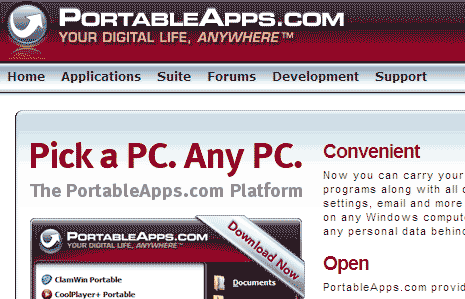
Have you ever wanted software for free that could compare to those of big companies? Well now there is a site that allows you to do so and is legal and completely legit. Giveaway of the day is what it says it is. There is one free download to software that you would normally have to pay for that is now for free for one day. You have to install that software the day that the give away is offered so it can be registered correctly and ensure that it stays free. There are many useful titles of software given away of many different categories. Also on the weekends they give away game software that will keep you entertained. Here is what the site looks like and please remember to let your friends know or anyone that is interested in free software......
Hope this site becomes of good use to you and satisfies your software needs. Check back daily for new software downloads. Enjoy and have fun! http://www.giveawayoftheday.com/
Subscribe to:
Posts (Atom)